

Invite an agent
An agent attached to their branch sees their day, not the other counters'. That is what makes the screen usable day to day.
The LocaFlotte team
Before you start
- You are the owner or an administrator of the account.
- The branch to attach the agent to already exists.
- You have the colleague's work email address.
Step 1Open user management
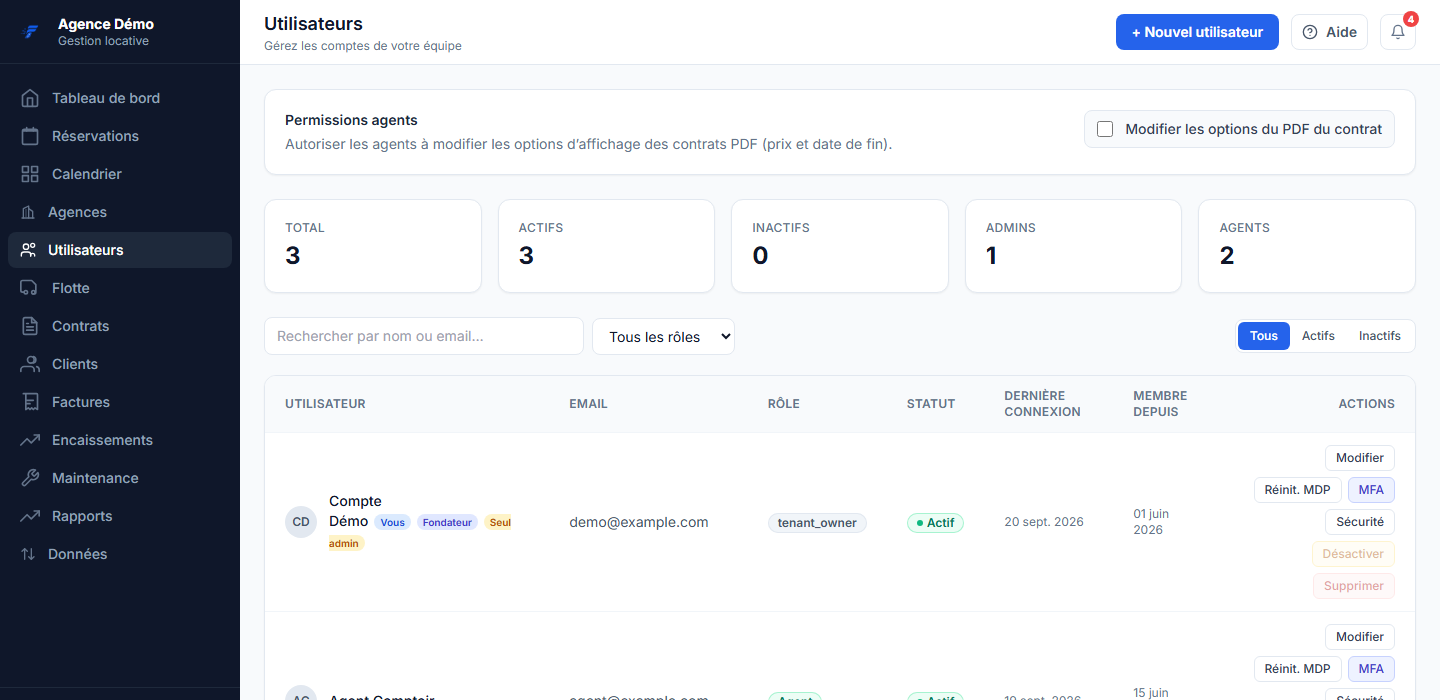
In the left menu, click Users.
Step 2Create the account
Click the new user button, then enter the first name, last name and email address.
Step 3Choose the role
Agent for the counter and the field, accountant or read-only for restricted access, administrator for someone who has to see and configure everything.
Step 4Attach to one or more branches
A counter agent gets their branch. A supervisor covering two counters gets two. The owner and the administrators see the whole company without any attachment.
Step 5Save and tell your colleague
The account appears in the list with its role and status. Until they sign in, their last login stays empty.
What you get
The colleague reaches your agency workspace with the rights of their role, and sees only the branches they are attached to.
If it does not go as planned
- Creation is refused: limit reached
- The number of users depends on your plan. Check your plan's limit before adding accounts.
- The agent sees reservations that are not theirs
- Check their attachment: an administrator account sees the whole company, regardless of branches.
- I want to let an agent change the contract PDF
- The agent permissions block, at the top of the Users page, lets you allow agents to change the display options of the contract PDF (price and end date). It is a branch-wide setting, not a per-person right.