

Issue an invoice
The invoice is built from the contract: there is nothing to re-enter, only something to check before issuing.
The LocaFlotte team
Before you start
- The rental contract exists for this reservation.
- The contract amounts are up to date, including any amendment.
Step 1Open the reservation
The contract and the invoice are both handled from the reservation file.
Step 2Create the draft invoice
Click the create invoice button. The invoice takes the customer, the contract and the amounts; it is created as a draft.
Step 3Check before issuing
Check the amount excluding tax, the VAT rate and the total. A draft can be corrected freely: this is the moment to do it.
Step 4Issue the invoice
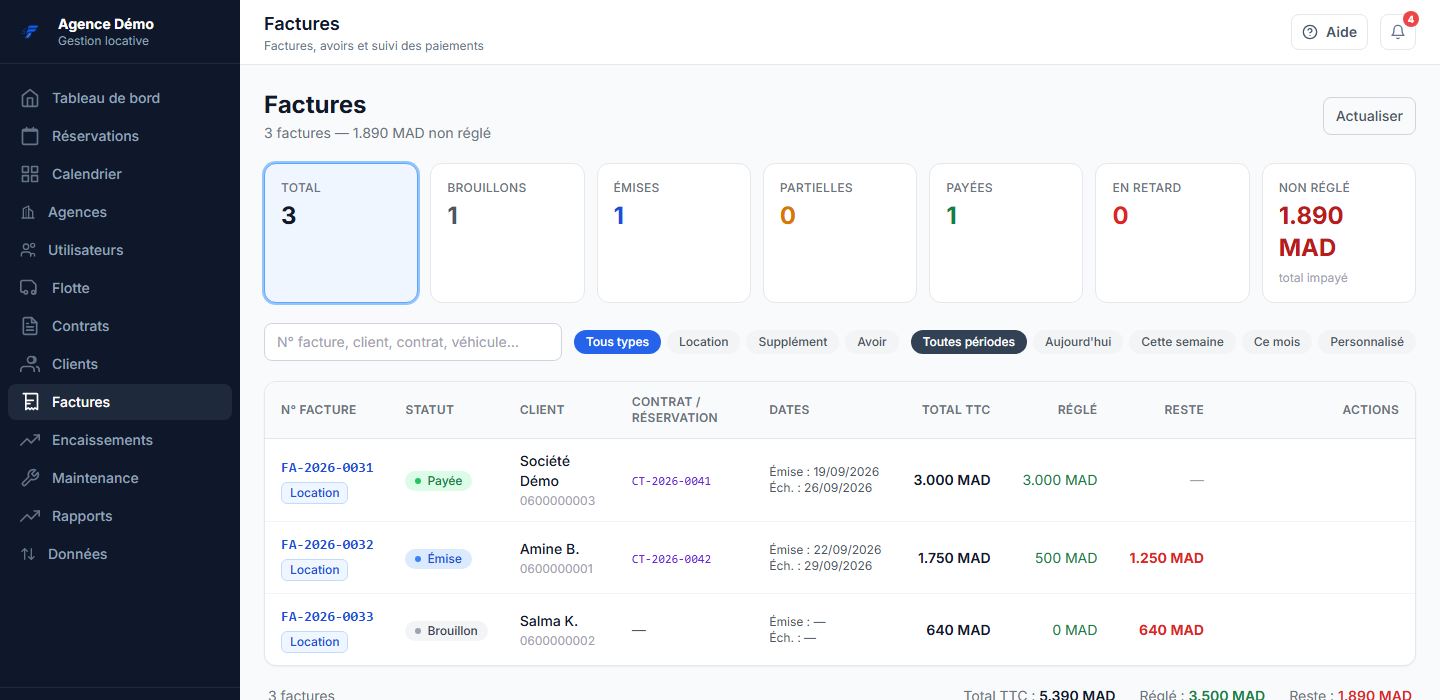
Click the issue button. The invoice then takes its number and its issue date.
What you get
The invoice moves from draft to issued, with its number, its date and its due date. Payments already collected are applied to it and the balance appears on the file.
If it does not go as planned
- I cannot see the invoice creation button
- A contract is needed on the reservation. Generate the contract first, then come back to the invoice.
- The invoice amount no longer matches the contract
- An amendment has probably changed the duration or the price. Start from the contract in force: that is the one that prevails.
- I need to correct an invoice already issued
- An issued invoice is not rewritten like a draft. Handle the correction as an operation of its own rather than by editing history.