

Import your customers, vehicles and reservations
Migration is the first objection from a rental company leaving Excel: what happens to my history? Here is how it actually enters LocaFlotte, what is checked line by line, and how to undo an import that does not suit you.
The LocaFlotte team
An agency changing tools never starts from a blank page. It has customers, vehicles, past reservations and often an Excel file kept for years. This guide describes how that data is taken over today in LocaFlotte, with no imaginary step.
It is written for the manager preparing a migration who wants to know, before committing, what to provide, what will be checked, and what happens when a file is badly formed.
Import opens after subscription, not during the trial
This is the first thing to know, because it surprises people: during the free trial, data import is deliberately closed. The data management page states that import becomes available after subscription and points to the subscription page.
The choice is deliberate: a trial is meant to judge the tool on a few records entered by hand, not to pour a full history into an account you may walk away from. During the trial, create a few vehicles and two or three reservations manually; the history comes later, in a single controlled operation.
File templates and import history stay readable during the trial. Only file upload is blocked.
The two import routes offered today
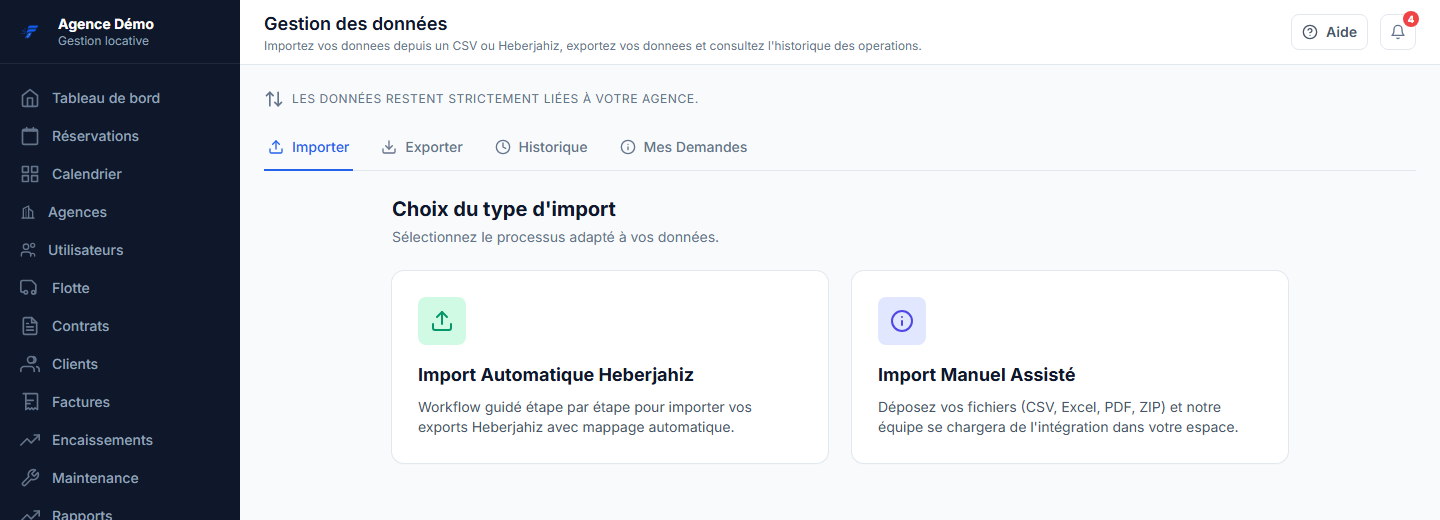
In the admin workspace, the import tab of the data management page offers two journeys. The right choice depends on the tool you are leaving.
| Criterion | Automatic Heberjahiz import | Assisted manual import |
|---|---|---|
| Who it is for | Agencies leaving Heberjahiz and holding its exports | Everyone else: Excel, scanned paper, another piece of software |
| Accepted files | One CSV or Excel file per step | Several files at once: CSV, Excel, PDF, ZIP archive |
| Who does the work | You, in a guided four-step journey | The LocaFlotte team, from your files and your instructions |
| Column matching | Recognised from the headers of Heberjahiz exports | Established by the team, who come back to you when in doubt |
| Check before writing | Statistics and failing rows shown before you confirm | Checked by the team before integration |
In both cases, nothing is written into your database until an explicit confirmation has taken place.
Route 1 — the automatic import, step by step
The Heberjahiz journey imposes four steps in this order: customers, vehicles, reservations, then pre-reservations. The order is not decorative: a reservation cannot be attached to a vehicle or a customer that does not exist yet.
Steps 1Start the journey
Import tab, automatic Heberjahiz card, start button. The journey opens on the customers step.
Steps 2Upload the file for that step
A CSV or Excel file, 5 MB at most and 50,000 rows at most. The file is analysed, not yet imported.
Steps 3Read the analysis result
The screen shows how many rows are valid and how many are invalid. Failing rows are listed with the offending field and the reason: empty required field, duplicate, vehicle not found, overlapping reservation.
Steps 4Confirm, then move to the next step
Confirming writes the valid rows into your database and moves the journey to the next step. You repeat the operation for vehicles, reservations and pre-reservations.
If rows are invalid and you have not asked to skip them, confirmation is refused with the exact number of rows involved. Fix the file and upload it again: safer than a silent partial import.
Route 2 — the assisted manual import
If you come from Excel, from paper or from software that does not export cleanly, this is the route to take. You upload your files as they are — several at once, including PDFs and ZIP archives — and you add a free-text note for the team.
That note matters more than people think: duplicate customers to merge, the file that holds the new rates, old reservations not to be taken over. It saves round trips. Your request is then tracked in the requests tab.
Preparing a file that passes on the first attempt
The checks applied to each row are the same whichever route you choose. Knowing them in advance avoids most errors.
| Data type | Required | Refused or flagged |
|---|---|---|
| Customers | The name | A customer already present is flagged as a duplicate. The phone number is recommended: without it, attaching reservations is more fragile. |
| Vehicles | The registration number, the brand, the model | Two rows carrying the same registration number, or a registration number already in the fleet. |
| Reservations | The customer name, the vehicle registration number, the start date, the end date | A vehicle not found, a customer not found, and any overlap with an existing reservation on the same vehicle. |
One row per record, complete dates including the time, a registration column written exactly as in your fleet: these three rules are enough for the vast majority of files to pass.
Checking afterwards, and rolling back
Every import is kept in the history with its counters: rows imported, skipped, failed. That is the record to consult before concluding that data has vanished — most of the time it was skipped for a precise reason, written next to the row.
A confirmed import can be undone. The rollback handles reservations, then vehicles, then customers, so it never breaks a link between two records. It does not force everything, and that is intentional: a record is kept if a contract or an invoice is attached to it, or if a reservation created outside the import uses it. Every kept row carries its reason.
The rollback also restores records that the import had updated, from the state saved before the change.
What this guide does not promise
- There is no self-service column-matching assistant for an arbitrary file today: either your headers are recognised by the automatic journey, or the team takes over.
- Confirmation creates customers, vehicles and reservations. Other data types present in a file are not created at that step.
- A file above 5 MB or 50,000 rows must be split before upload.
- A rollback may be partial: records already used by a contract, an invoice or a reservation outside the import are kept.
Frequently asked questions
- Can I import an Excel file without converting it?
- In the automatic journey, an Excel workbook is accepted just like a CSV file. For any other Excel file, use the assisted manual import: you upload the workbook as it is and the team handles the formatting.
- Can I import during the free trial?
- No. Import becomes active after subscription. During the trial, enter a few vehicles and reservations by hand: that is enough to judge the tool, and it avoids filling an account you may not keep.
- What happens if two reservations overlap in my file?
- The row is flagged as invalid before anything is written, with the overlap as the reason. You either fix the file or explicitly ask to skip invalid rows: they are then not imported and remain listed in the history.
- Is my reservation history taken over, or only upcoming rentals?
- Past reservations can be taken over: they feed the vehicle history and the customer history. Simply state the period you want to keep, especially if your file goes back several years.
- How long should I allow for it?
- The duration depends on how clean your files are, not on the number of rows. A file with one row per record, complete dates and consistent registration numbers goes through in a single session. A heterogeneous file takes one or two round trips with the team.